AI Chatbot
The AI Chatbot is a built-in feature of Vik Booking that automatically handles inquiries from potential guests and website visitors. When a visitor submits a question through the chat interface, the AI processes the request using the information stored in Vik Booking and the channel manager, and provides an accurate answer instantly.
If the user explicitly requests to speak with a human operator, the conversation is handed over to the administrator.
Publishing the Chatbot Widget
To make the AI Chatbot available on your website, you need to publish the VikBooking Chat widget.
- Create or open the page where you want to display the chatbot.
- Click the “+” button to add a new block.
- Search for VikBooking Chat and add it to the page.
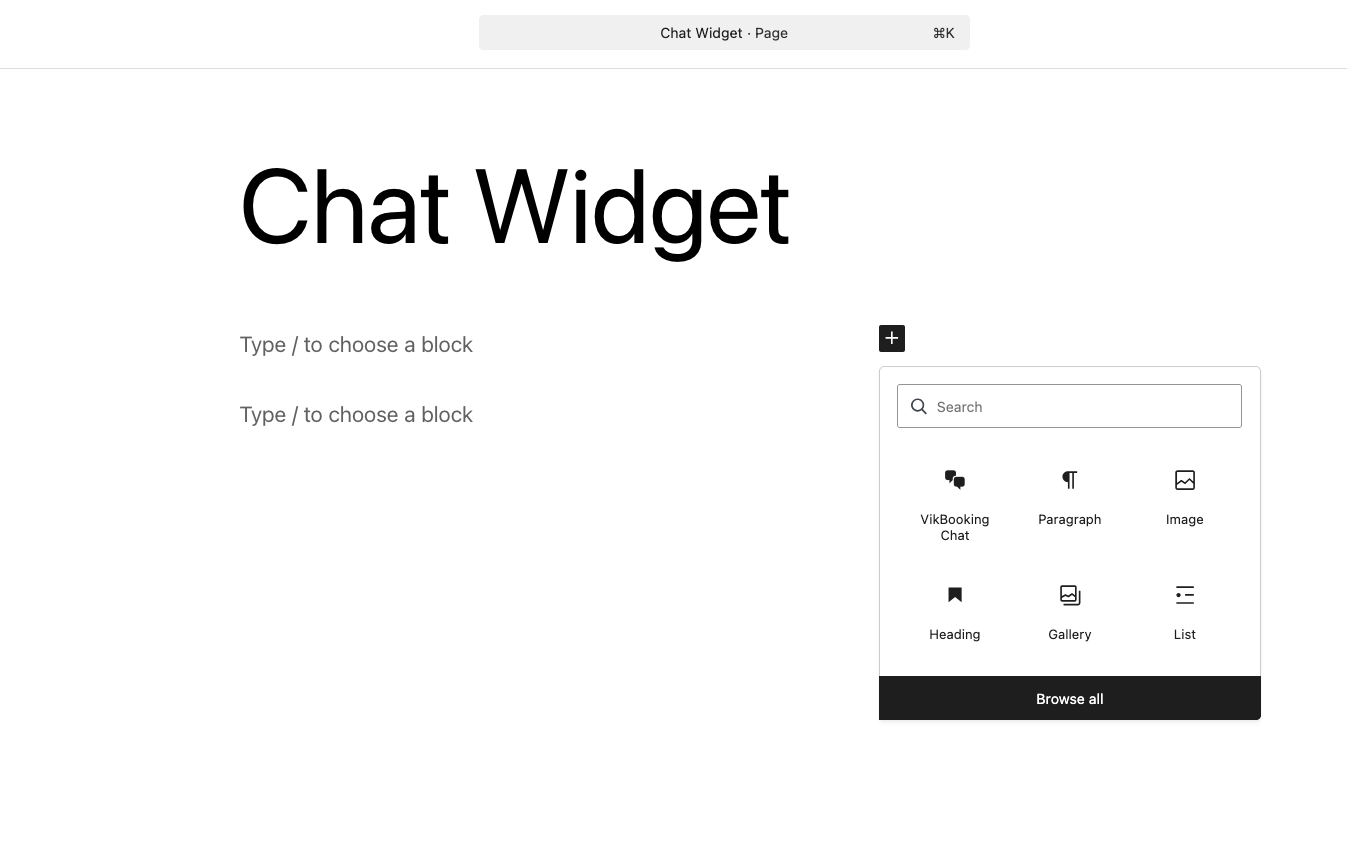
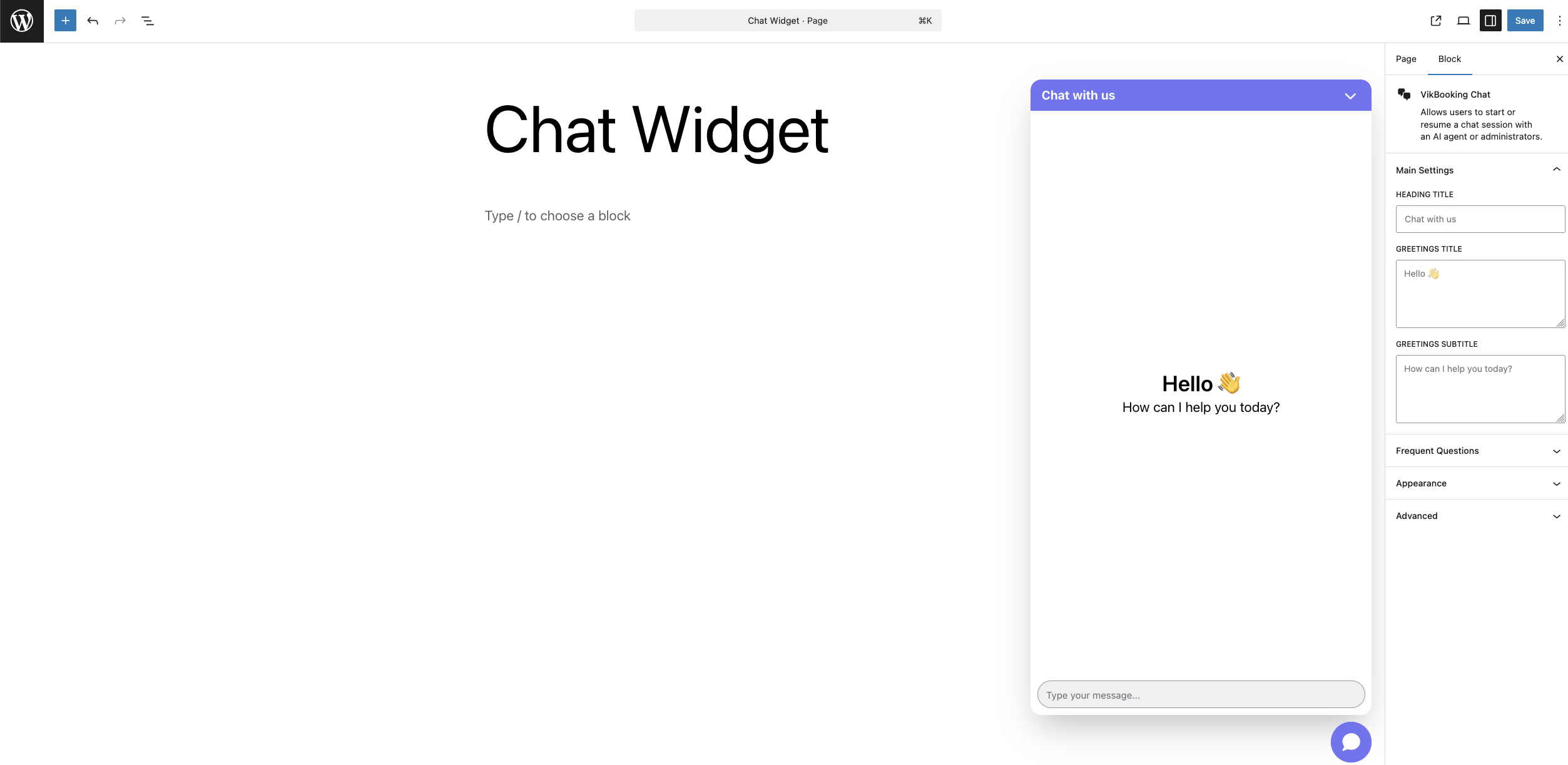
Once added, the chat window will appear immediately.
On the right-hand side of the page, two configuration panels will be available, Page and Block, which allow for customization of both the page and the chat widget.
In the Page section you can:
- Rename the page
- Upload a featured image
The Block section includes various tabs:
Main Settings:
It is possible to define the chatbot Title as well as the initial Greeting Title and Subtitle. This is where the chatbot can be named.
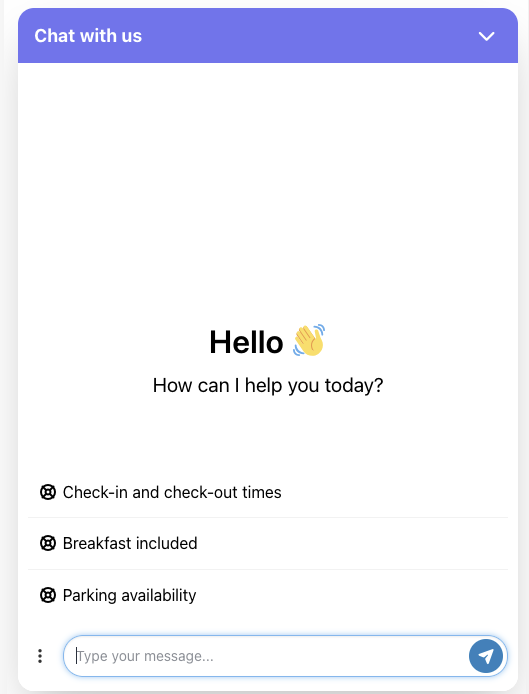
The Frequent Questions tab allows you to add commonly asked questions and provide predefined answers to improve response speed and accuracy. When starting a conversation, customers can either type their own question or select one of the available Frequent Questions topics that will be immediately addressed.
The Appearance tab provides options to customize the background color and the text color.
Finally, the Advanced section is aimed at further customization through the addition of custom CSS code.
Conversation Example:
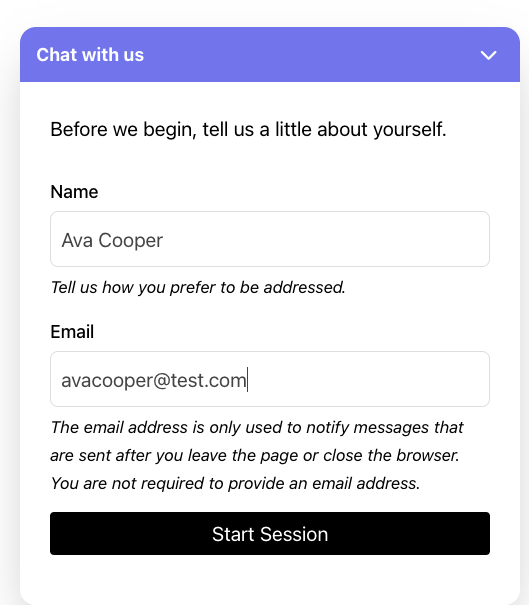
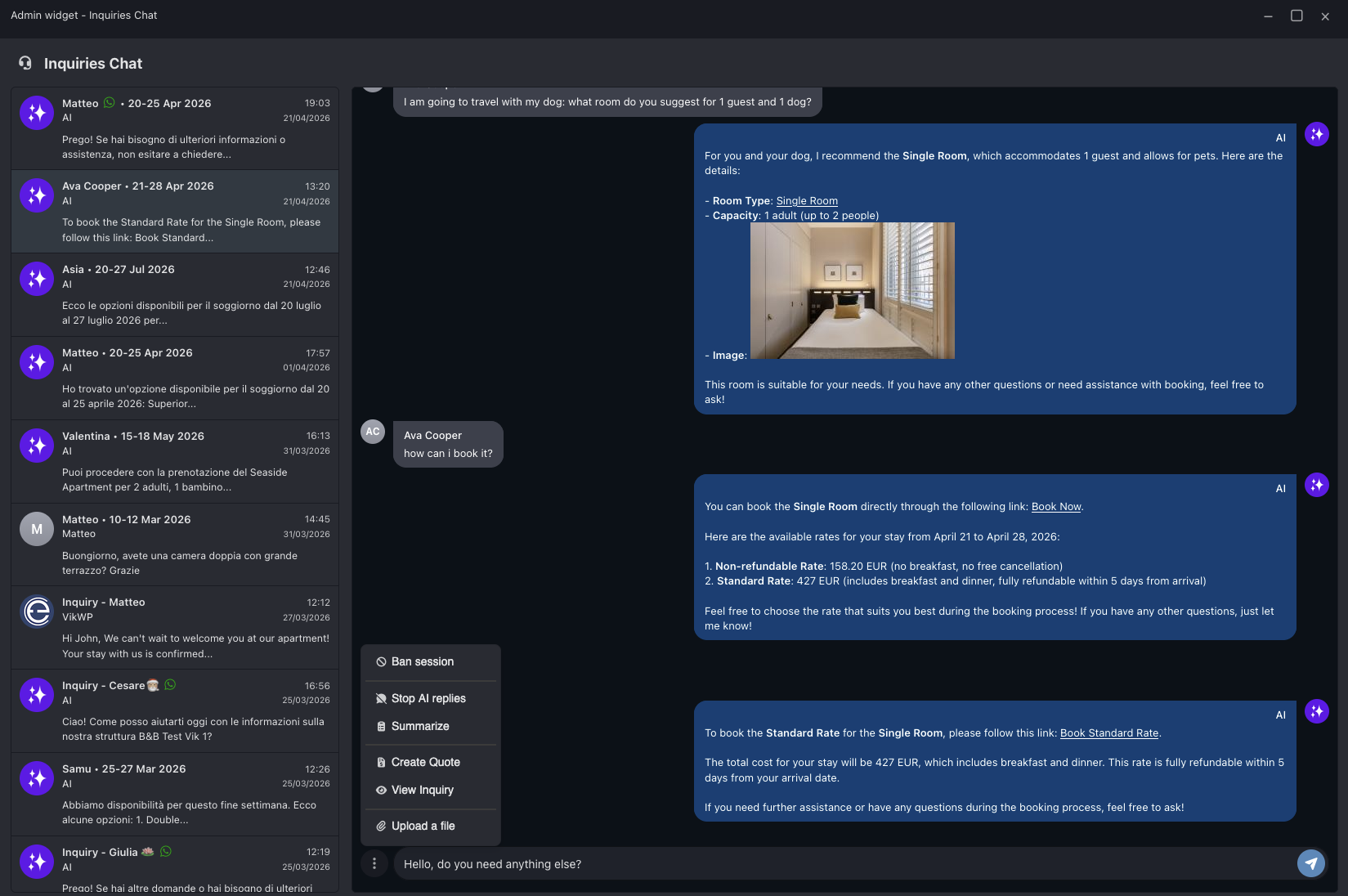
Consider a guest such as Ava Cooper, who is planning a holiday by car and visits your website to inquire about parking availability. Upon opening the chat, she may either type her question manually or select one of the predefined options listed under the Frequent Questions section. If “parking” has already been configured, the AI Chatbot will immediately provide a relevant and accurate response.
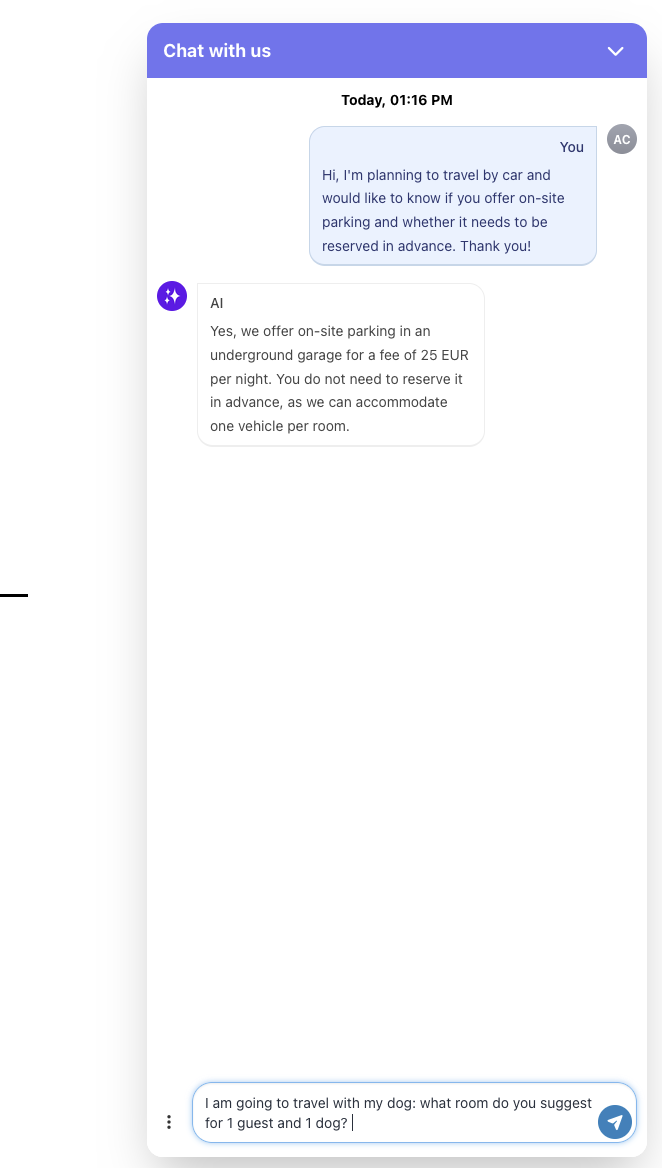
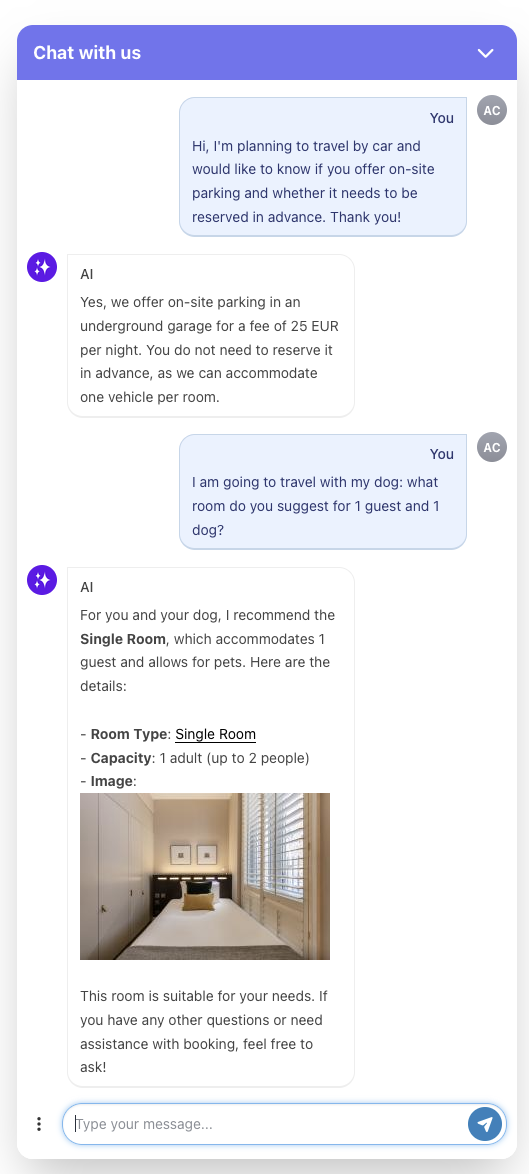
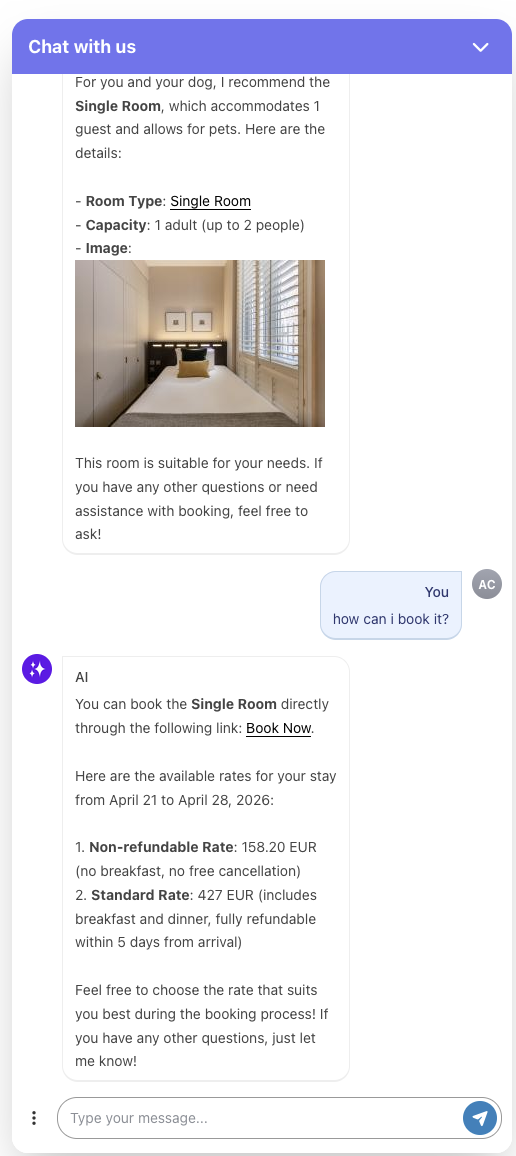
As the conversation progresses, the chatbot may suggest related content, such as available rooms. When Ava clicks on a room name within the chat, she is automatically redirected to the corresponding room details page, where she can view photos, descriptions, and pricing. From there, she has the option to proceed directly with the booking.Alternatively, if she prefers additional guidance, she can continue interacting with the chatbot by asking how to complete a reservation. In response, the chatbot will provide clear instructions and direct her to the appropriate booking page, ensuring a smooth and guided user experience from inquiry to reservation.
For users who have not enabled the AI channel and are therefore not using AI features, the chatbot remains available; however, all conversations must be handled manually.
Notifications and Chat Management
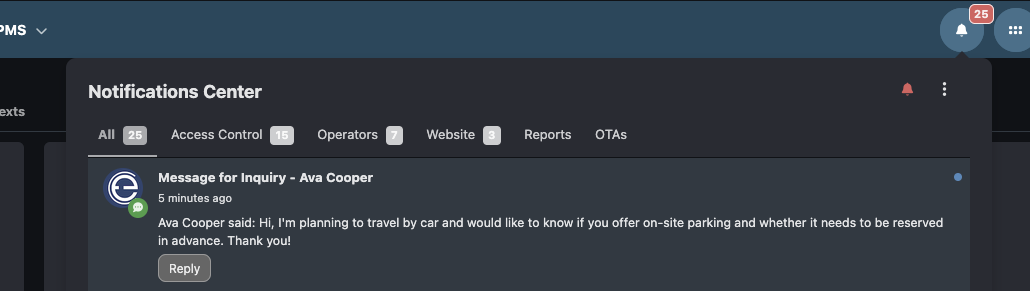
Whenever a new conversation is initiated through the AI Chatbot, the system automatically generates a notification to alert the administrator. These notifications are accessible via the Notifications Center, which can be opened from any page within Vik Booking by clicking the bell icon. From there, it is possible to quickly identify new inquiries and access the related conversation.

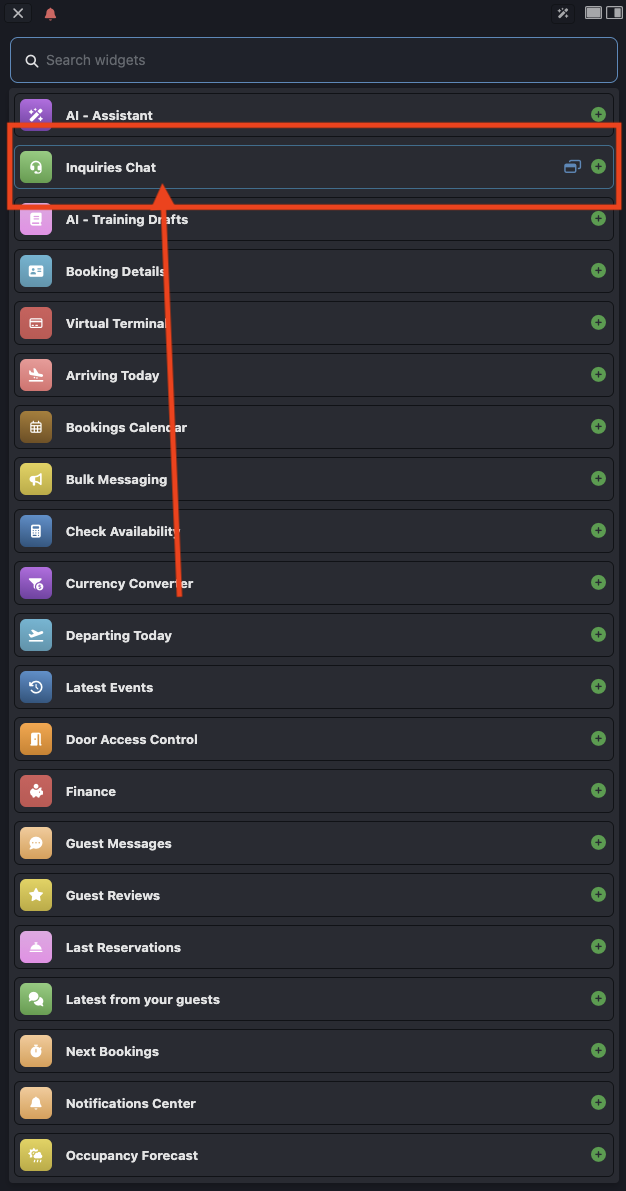
All chats are centrally managed through the “Inquiries Chat” widget, available in the Multitask Panel. This interface provides a complete overview of all conversations initiated on the frontend, regardless of whether they were handled by the AI Chatbot or started manually by a user. By opening the widget, administrators can browse the list of conversations and select any chat to read or reply in real time.
In addition to website-based interactions, the Inquiries Chat widget also includes messages received through other communication channels, such as WhatsApp.
You can access conversations either directly from the Notifications Center, by clicking the notification and by selecting “Reply” to open the conversation in the Inquiries Chat widget, or from the Multitask Panel by opening the Inquiries Chat widget.
Chat Management Tools
Within the conversation interface, through a three-dot menu you can access the following actions:
- Ban Session: Block or unblock a user from continuing the conversation. When chat is managed by the AI, SPAM content can be automatically detected and blocked.
- Stop AI Replies: Disable automatic responses and take full manual control
- Summarize: Generate a summary of the conversation for quick review
- Create Quote: Redirect to the "Create Quote" page to send a quotation to the customer.
- View Inquiry: Quickly review a structured summary of the guest request (stay dates/ number of guests...)
- Upload File: Send attachments directly within the conversation
Below you have the text area where you can write your message, and the Send button to send it.
e4jConnect.com and e4j - Extensionforjoomla.com are not affiliated with or endorsed by the Joomla! Project or Open Source Matters.
The Joomla! name and logo is used under a limited license granted by Open Source Matters the trademark holder in the United States and other countries.
E4J s.r.l. - VAT N. 06794860483