Managing Mobile App account permissions allows you to give your co-workers access to the Mobile App without losing operational control or compromising your business and sensitive guest data.
For example, some operators may need access to booking information, while others may only need to manage prices, access the Task Manager, or communicate with guests.
In this article, we will explain how to configure operators and manage their Mobile App permissions.
1. Create an Operator in VikBooking
First, create an operator in VikBooking > PMS > Operators
Make sure to use the same email address that the operator will use to access the Mobile App.
Fill in at least all the mandatory fields marked with an asterisk (*) and assign the permissions required by the operator.
When configuring an operator's permissions, you may notice that some permission tabs include a Listings parameter.
This setting allows you to restrict the operator's access based on the listings assigned to them. Depending on the selected listings, the operator will only be able to view or manage the information related to those listings.
This can be particularly useful for Property Managers who want to give property owners access to the app while restricting their access to only the properties they own.
If left empty, all listings will be selected.
Let's take a closer look at the available operators' permissions.
1.1 Tableaux
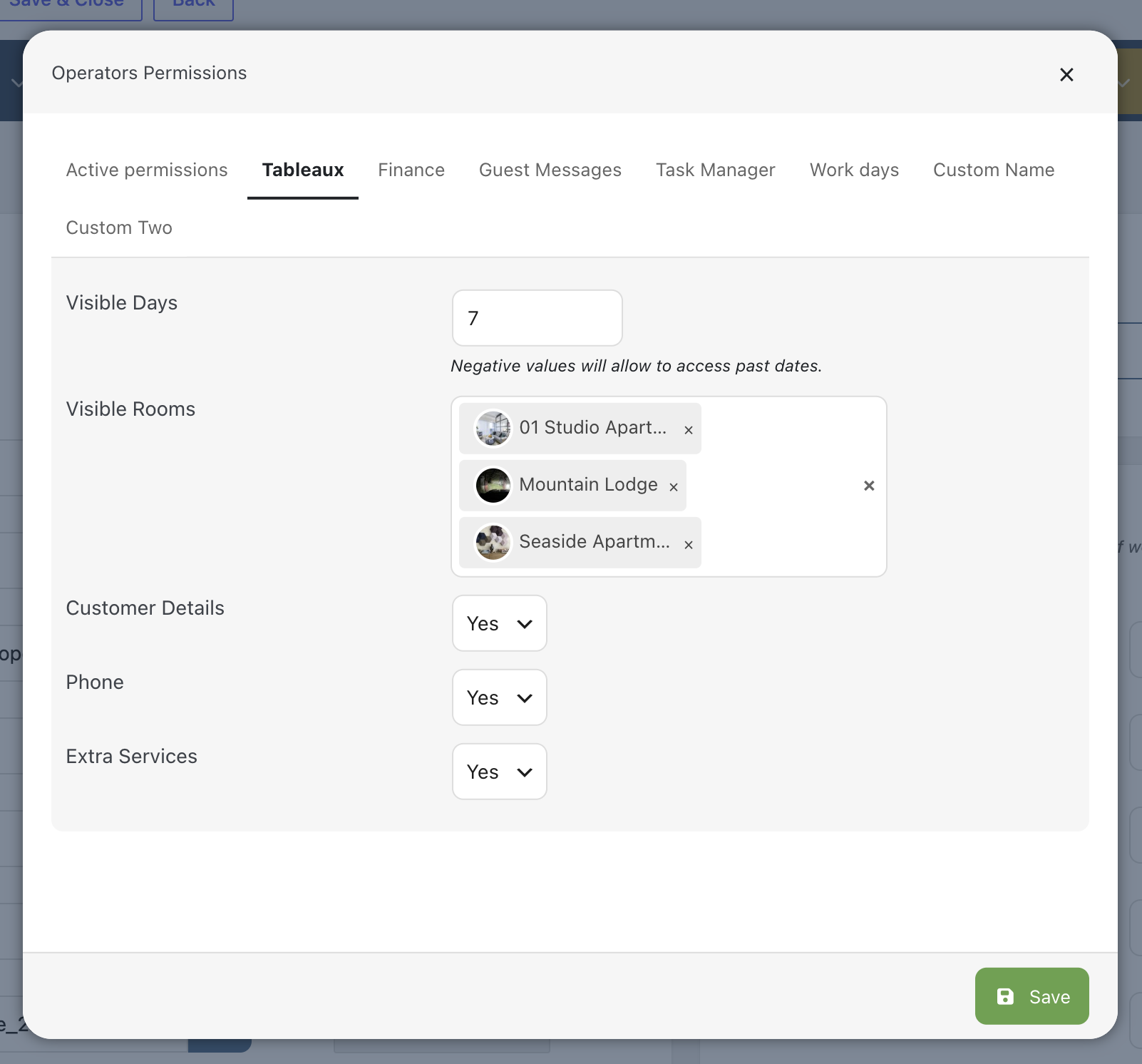
This permission allows the operator to access Tableaux both from the website frontend through the Operators Login page and from the Mobile App.
The Tableaux section displays a calendar showing the availability of rooms or apartments.
As an administrator, you can filter the rooms displayed to the operator and choose whether or not to show customer and booking information.
1.2 Finance
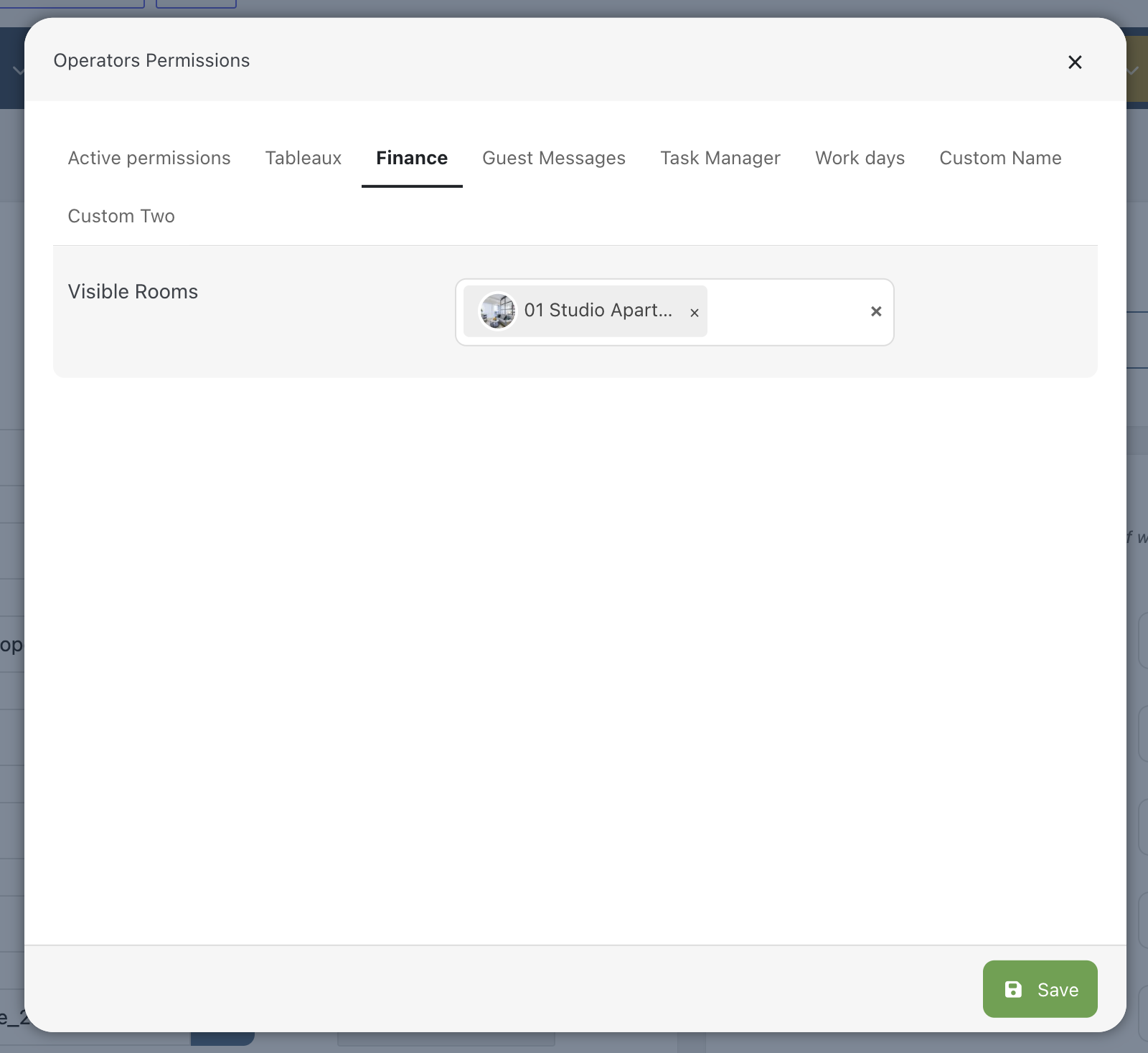
The Finance permission gives the operator access to financial charts and statistics, as well as invoice management.
This permission can also be restricted based on the assigned listings, allowing you to control which rooms or apartments the operator can access.
1.3 Guest Messages
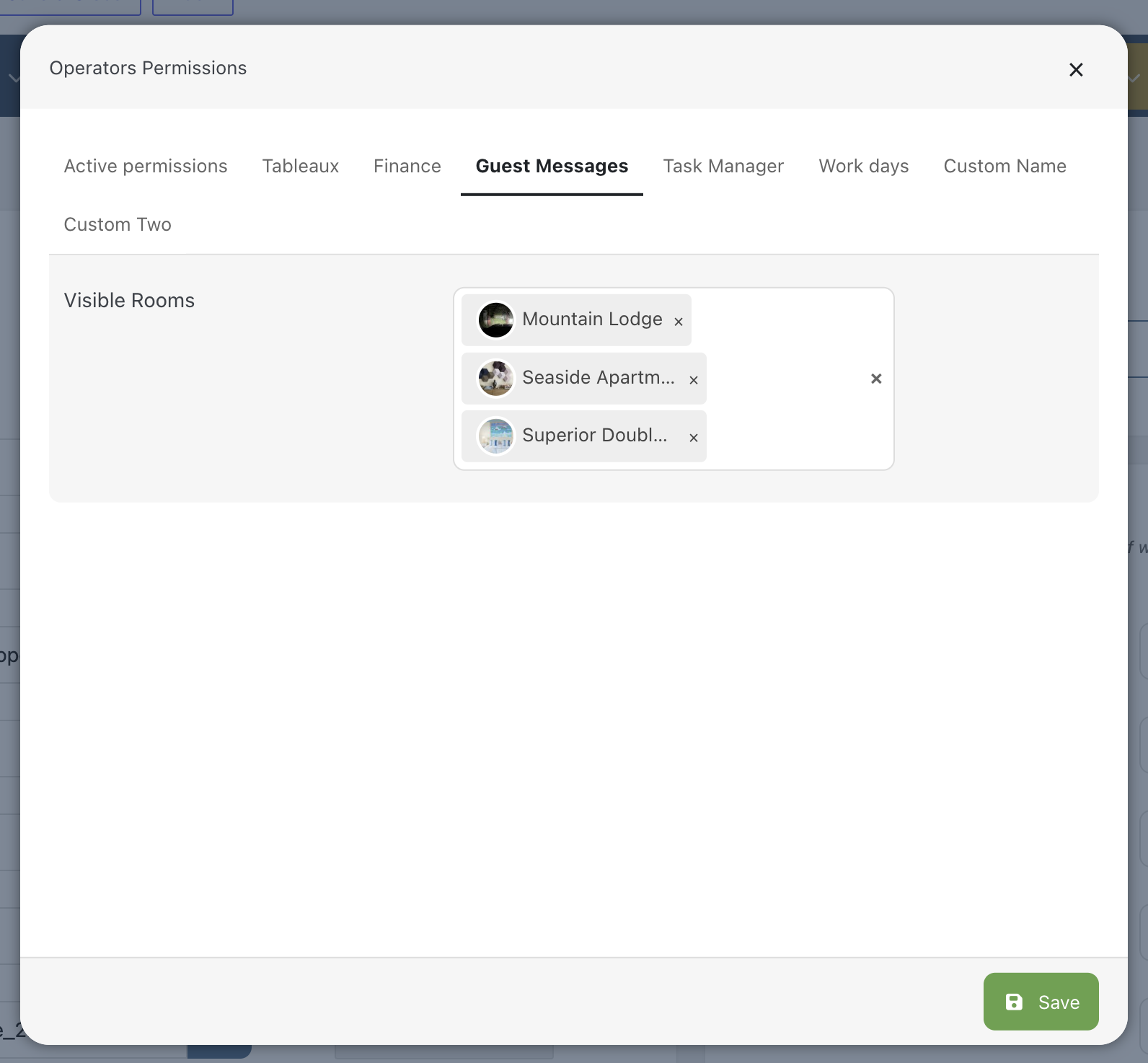
The Guest Messages permission allows the operator to view and reply to guest messages received from all connected channels.
The Listings filter can be used to restrict access to conversations based on the rooms or apartments associated with the bookings.
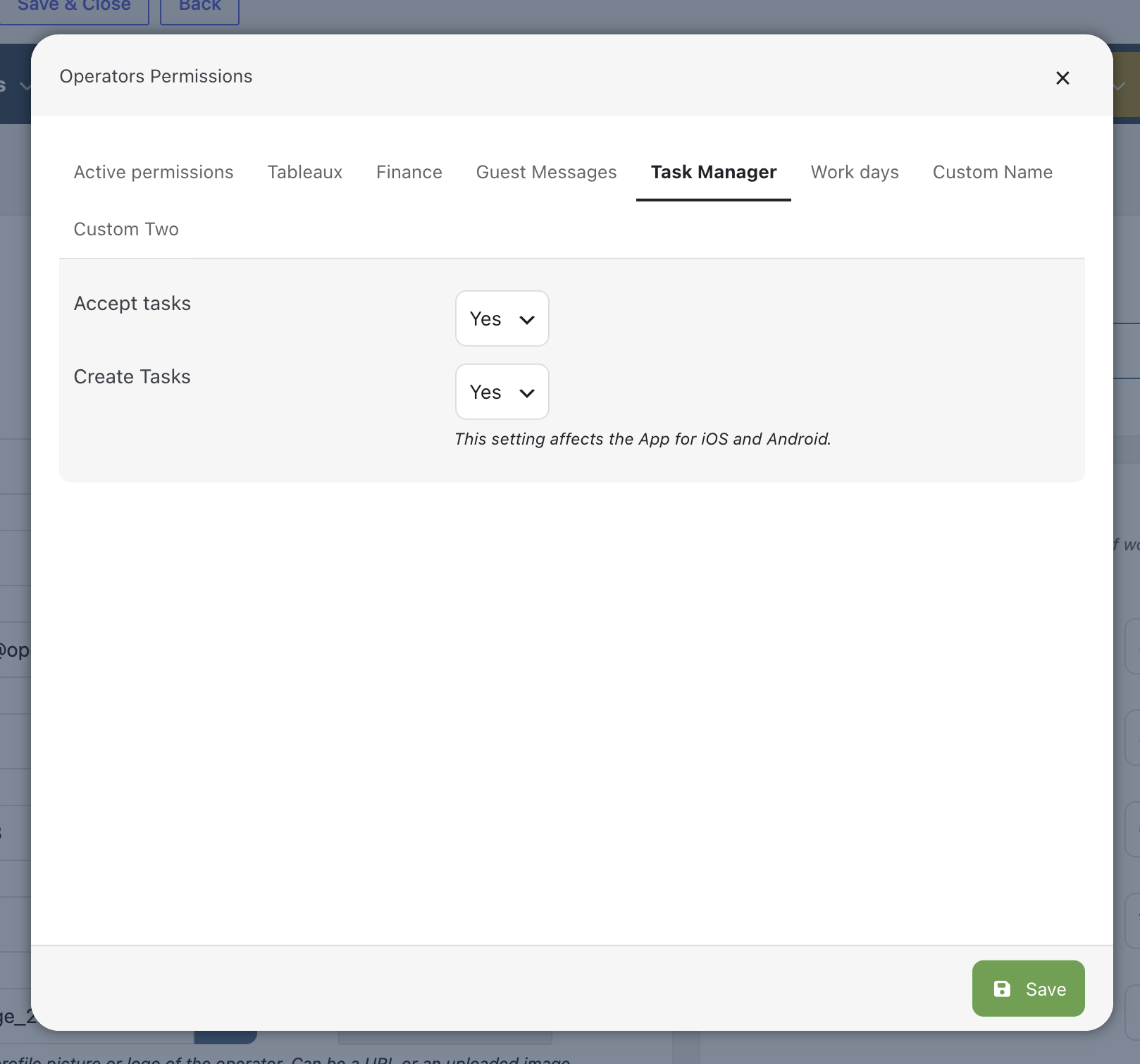
1.4 Task Manager
The Task Manager permission gives the operator access to the Task Manager, where they can view their assigned tasks as well as tasks that have not yet been assigned to an operator.
Depending on their permissions, operators can modify tasks and use the internal chat to communicate with other assigned operators or with administrators.
Only if enabled the Create Tasks parameter, the operator can also create new tasks.
2. Create a Mobile App Account
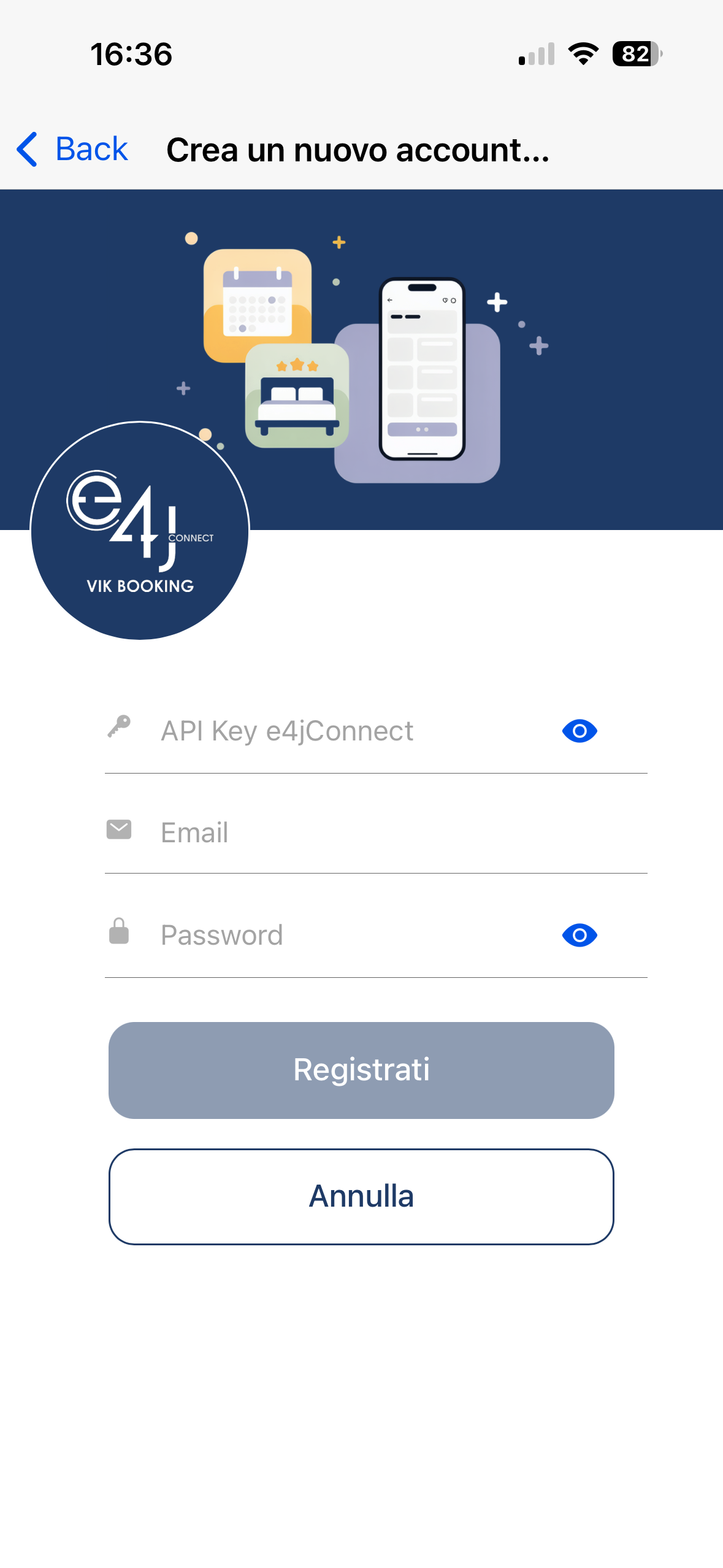
Once the operator has been created and configured in VikBooking, you can ask them to create their own account directly from the e4jConnect Mobile App on their device. Alternatively, you can create the account on their behalf.
To create a Mobile App account, you will need:
- API Key;
- email address used to create the operator in VikBooking
- password between 6 and 16 characters long
3. Manage Mobile App Account Permissions
Once the Mobile App account has been created, you can manage its permissions and access level from: Vik Channel Manager > Mobile App > App Config > Settings
Make sure that the Mobile App is enabled as an active channel.
Here, you will find all the Mobile App accounts. Use the drop-down menu to assign a role to each account, such as Administrator / Super User, Subscriber / Registered, and other available roles.
Changing the role and saving the configuration in Vik Channel Manager will restrict or expand the account's access to the different Mobile App sections and tools according to the permissions assigned to that role.
To learn more about customizing the permissions for each role, see the Account Management section of this Knowledge Base.
e4jConnect.com and e4j - Extensionforjoomla.com are not affiliated with or endorsed by the Joomla! Project or Open Source Matters.
The Joomla! name and logo is used under a limited license granted by Open Source Matters the trademark holder in the United States and other countries.
E4J s.r.l. - VAT N. 06794860483