
Activate the Trip.com Channel
Purchase the channel connection from the following link.
Once the purchase is complete, open the Vik Channel Manager dashboard and click Activate Channels. Trip.com will then appear in the channel menu, allowing you to start the configuration.
Log in to your Trip.com account and navigate to the Channel Manager settings. Select e4jConnect as your Channel Manager and enter the provided SubID to initiate the connection.
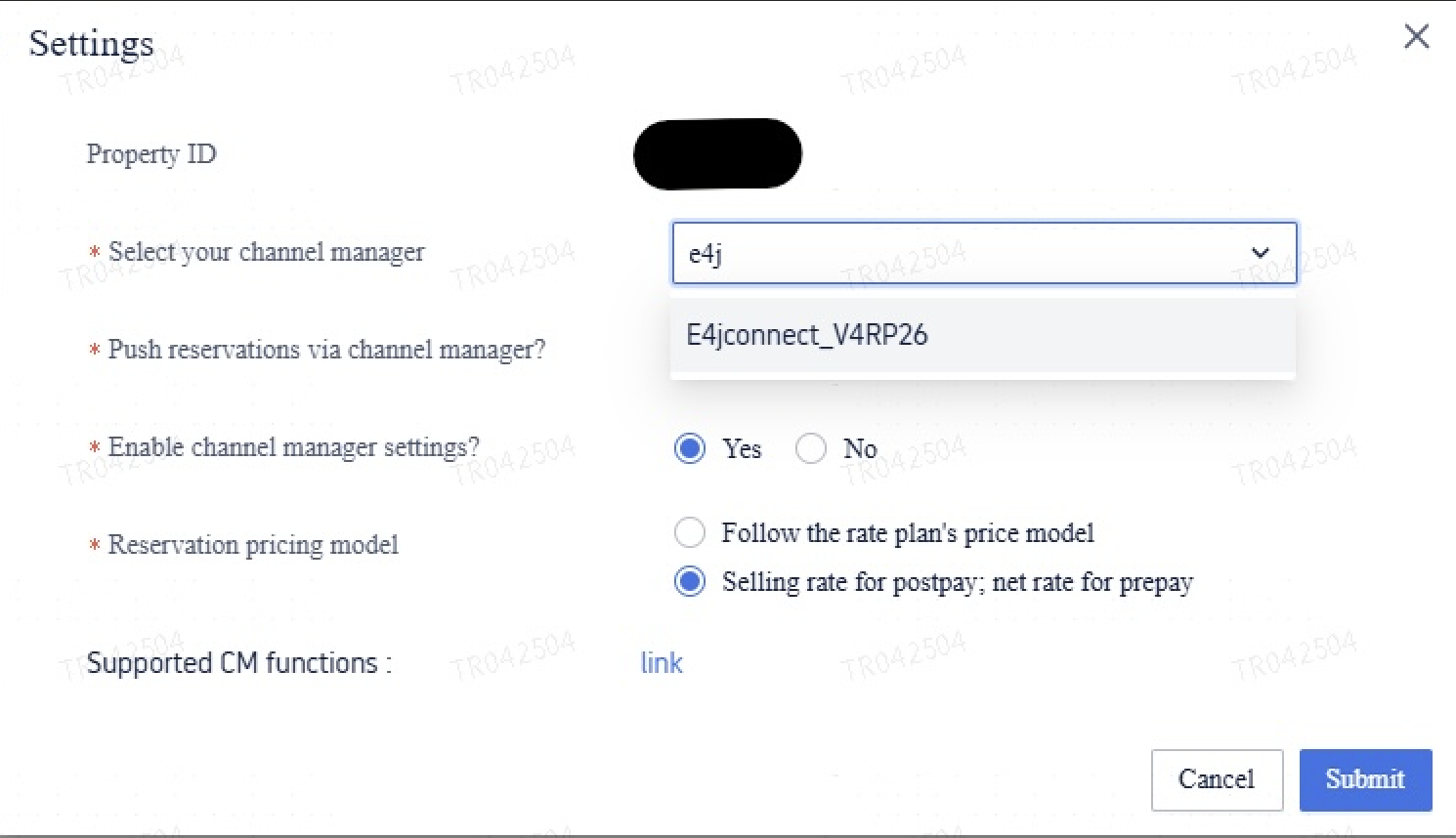
Return to your WordPress or Joomla website and open Vik Channel Manager. Select Trip.com from the channel menu and open the Settings page. Enter your Hotel ID and click Save.
Configure the Price Comparison* parameter according to your requirements, then save your changes.
Navigate to Hotel > Synchronize Rooms. Map each room on Trip.com to its corresponding room in Vik Booking, then click Save.
Once the room mapping is completed successfully, you can proceed with updating availability and rates.
To synchronize your property's availability with Trip.com, navigate to Bookings > Bulk Actions > Copy Availability. Set the desired date range and select Trip.com as the channel.
Click Submit Availability Inventory Copy at the top of the page to submit the availability for the selected period.
To submit your rates to Trip.com, navigate to Bookings > Bulk Actions > Rates Upload. Set the desired date range and select Trip.com as the channel, then submit the rate upload operation.
Once the connection has been configured, the rooms have been mapped, and availability and rates have been uploaded, your property is ready to receive reservations through Trip.com.
e4jConnect.com and e4j - Extensionforjoomla.com are not affiliated with or endorsed by the Joomla! Project or Open Source Matters.
The Joomla! name and logo is used under a limited license granted by Open Source Matters the trademark holder in the United States and other countries.
E4J s.r.l. - VAT N. 06794860483